
Security & Privacy
How to Protect Your Smartphone Data from Intruders, Kids, and Theft
A layered playbook for locking sensitive apps, handing your phone over safely, and surviving a stolen device without losing your data.
Jul 14, 2026 4 min read
Cache is not junk by default. Knowing the difference between cache, residual files and data is the whole game.
We independently evaluate recommended products and services. When you buy or install through links on this page, we may earn a commission. This never affects our testing or verdicts.
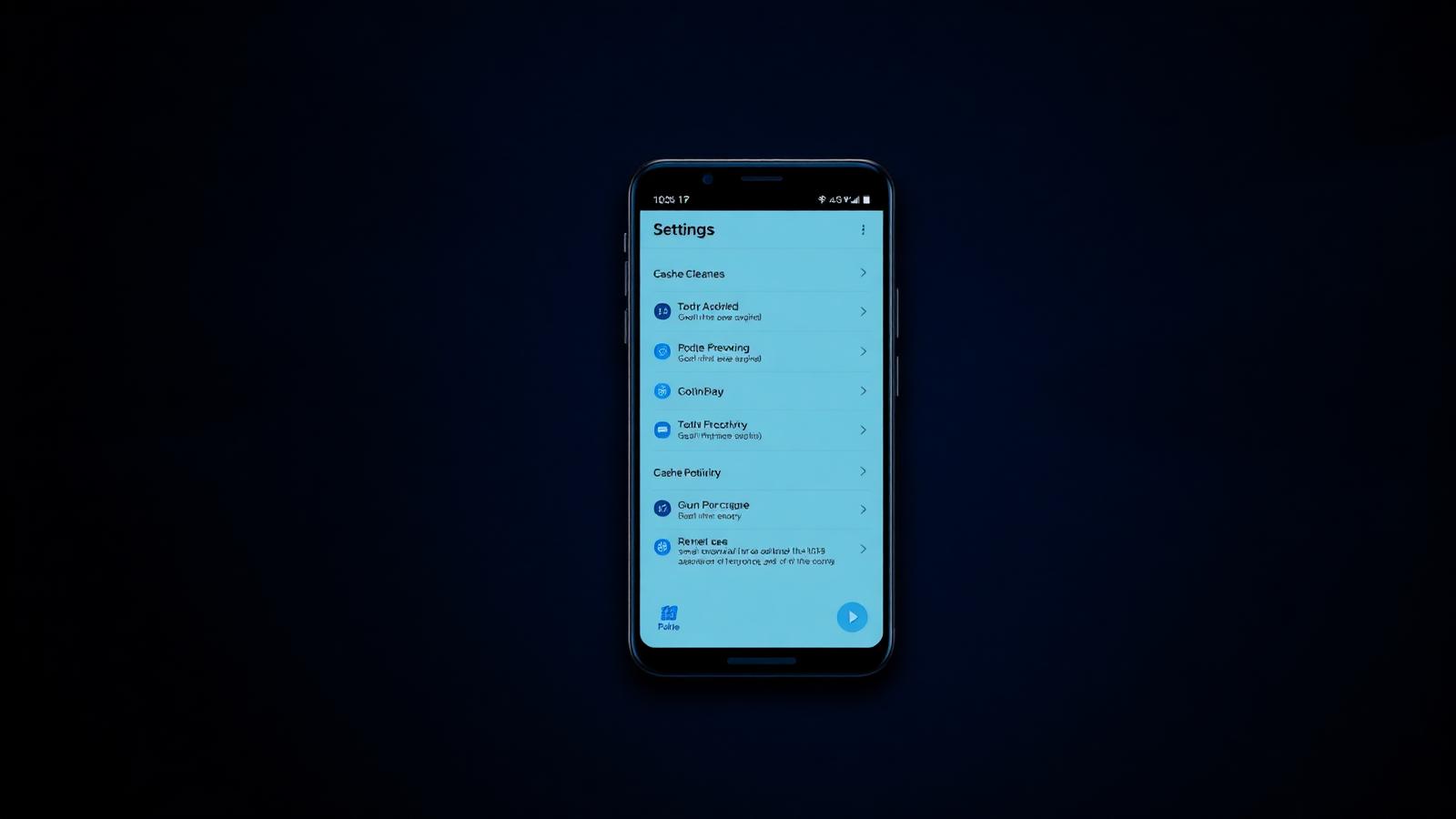
Android caches aggressively by design: thumbnails, map tiles, feed images and pre-rendered layouts all live on disk so the next launch is instant. The problem starts when caches outlive their usefulness — a messaging app holding four years of media thumbnails, or a shopping app that never prunes product images. Multiply that across forty apps and you lose double-digit gigabytes.
Skip 'RAM booster' features that force-stop background apps. Android's memory manager is already optimal, and killing processes means they relaunch cold — costing battery and making the phone feel slower, not faster. Similarly, avoid tools that ask for root or accessibility permissions to do ordinary cleanup work.
If a cleaner promises to 'boost' RAM, it is selling a placebo with a progress bar. Judge cleaners on storage recovered, not on animations.
Enable Android's Storage Manager to auto-remove backed-up photos, schedule a weekly cleaner sweep, and keep Downloads pointed at a folder you actually review. Combined, that is roughly five minutes of setup for a phone that stays fast between OS updates.
A layered playbook for locking sensitive apps, handing your phone over safely, and surviving a stolen device without losing your data.

Stop friends, family and thieves from opening your private apps. A practical guide to per-app locks, unlock methods and the apps that make it easy.

Clear hidden caches, duplicate photos and bloated screenshot folders to free real space on iOS — without deleting anything you care about.
One email a week: storage wins, security settings worth changing, and the utilities that survived our testing.
No spam. Unsubscribe in one click.
15 in-depth guides and counting.